 RipMap
Cut list software for woodworkers
Know what to buy.
Know what to cut.
RipMap turns your cut list into plywood and board layouts, a shopping list, and a cost breakdown. Start with the dimensions you already have, before you buy another sheet.
No CAD model required. The hosted app is in private preview.
01 / Features
From a parts list to a plan for the shop
Build cabinets, bookcases, or one-off furniture from the stock sizes and prices you actually use.
- 01
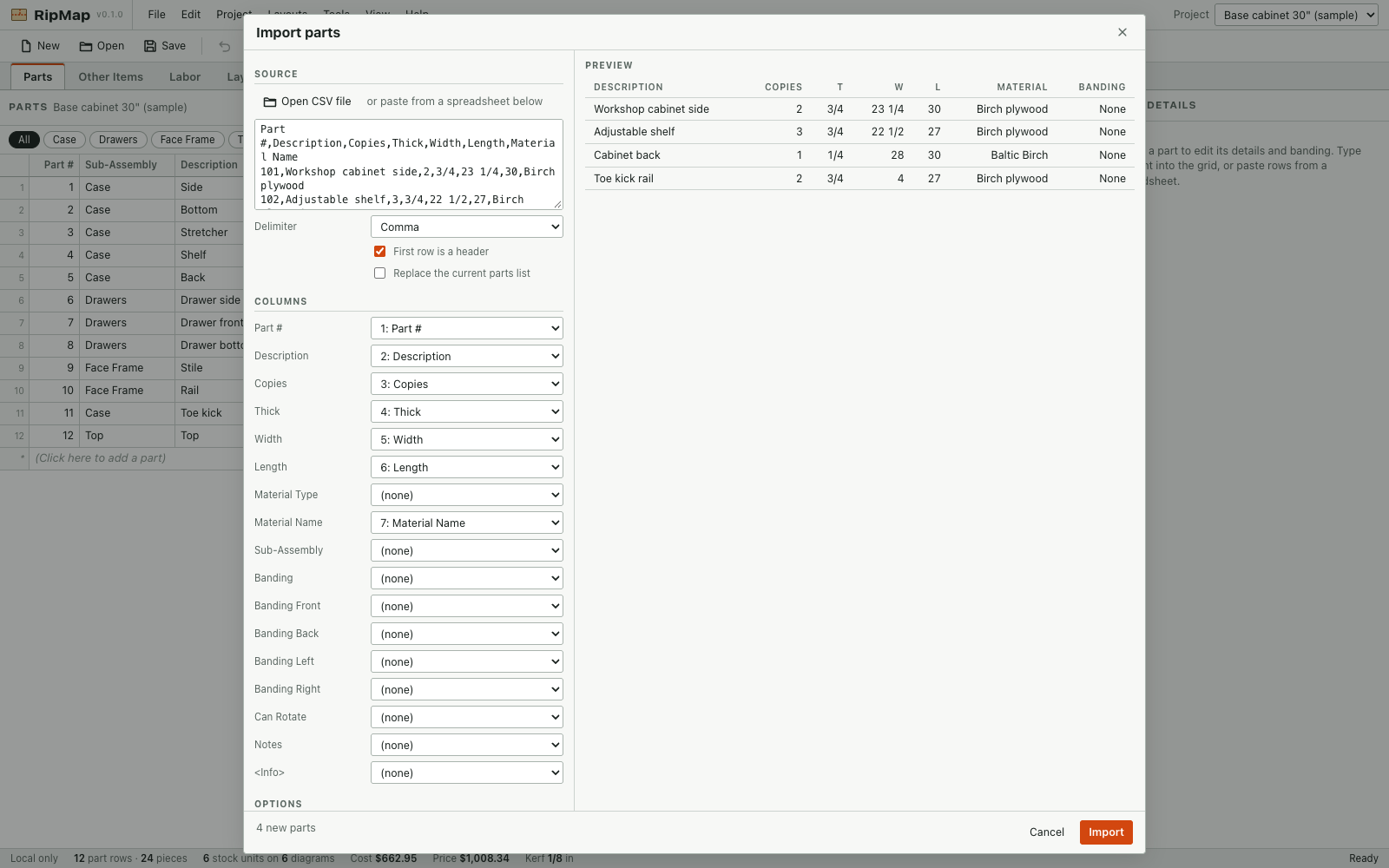
Import your cut list
Type the parts in, paste rows from a spreadsheet, or bring in a CSV. Match columns for dimensions, quantities, and materials, then check the preview before importing.
See the import screen - 02
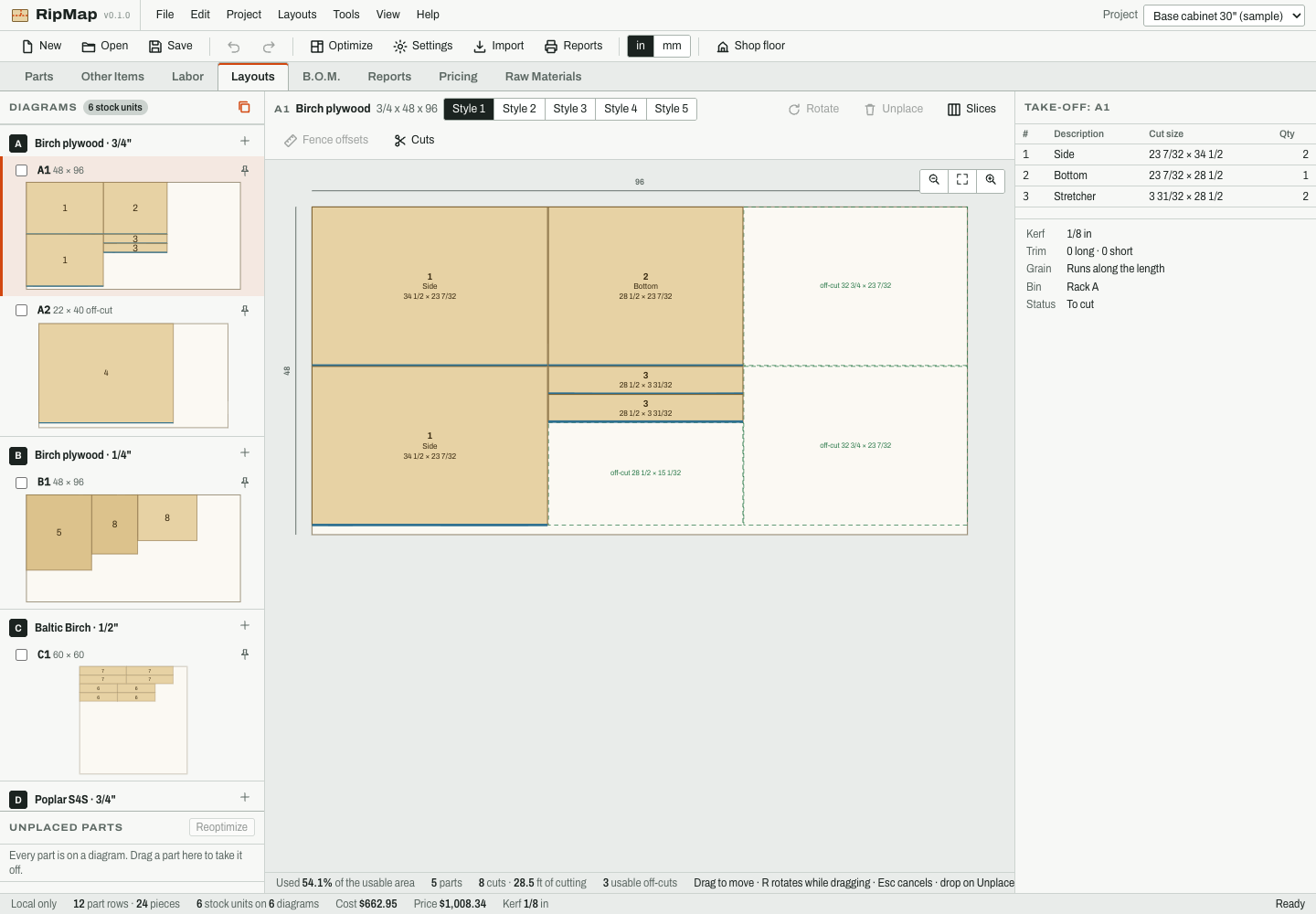
Lay out plywood and boards
See where each part goes, sheet by sheet or board by board. Set your saw kerf and grain direction, and check which parts can be rotated.
See a cutting diagram - 03
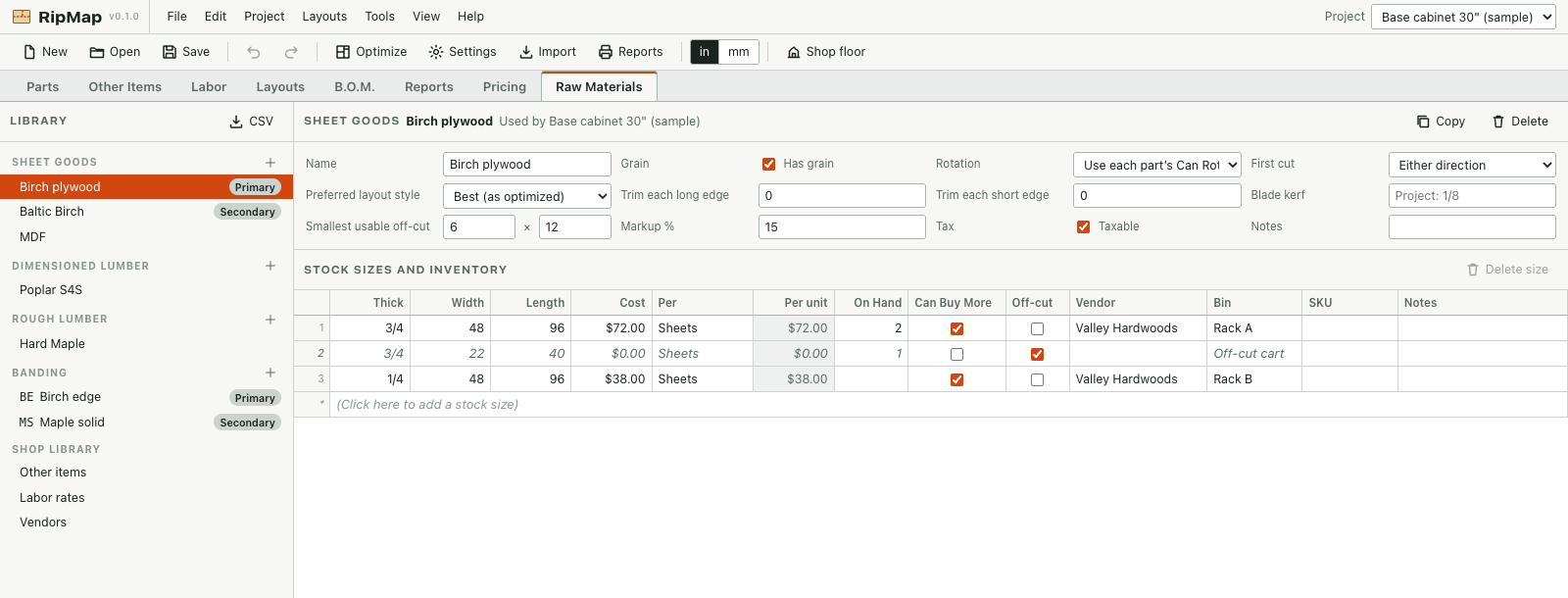
Keep a material database
Record the sheet sizes, board sizes, thicknesses, and prices you use. Include usable offcuts so you can see whether the next job needs new stock.
See the material library - 04
Price the whole project
See wood, edge banding, hardware, finishing supplies, and labor in the same project. Use the bill of materials to check quantities before you shop.
See the bill of materials See detailed pricing - 05
Take the plan to the saw
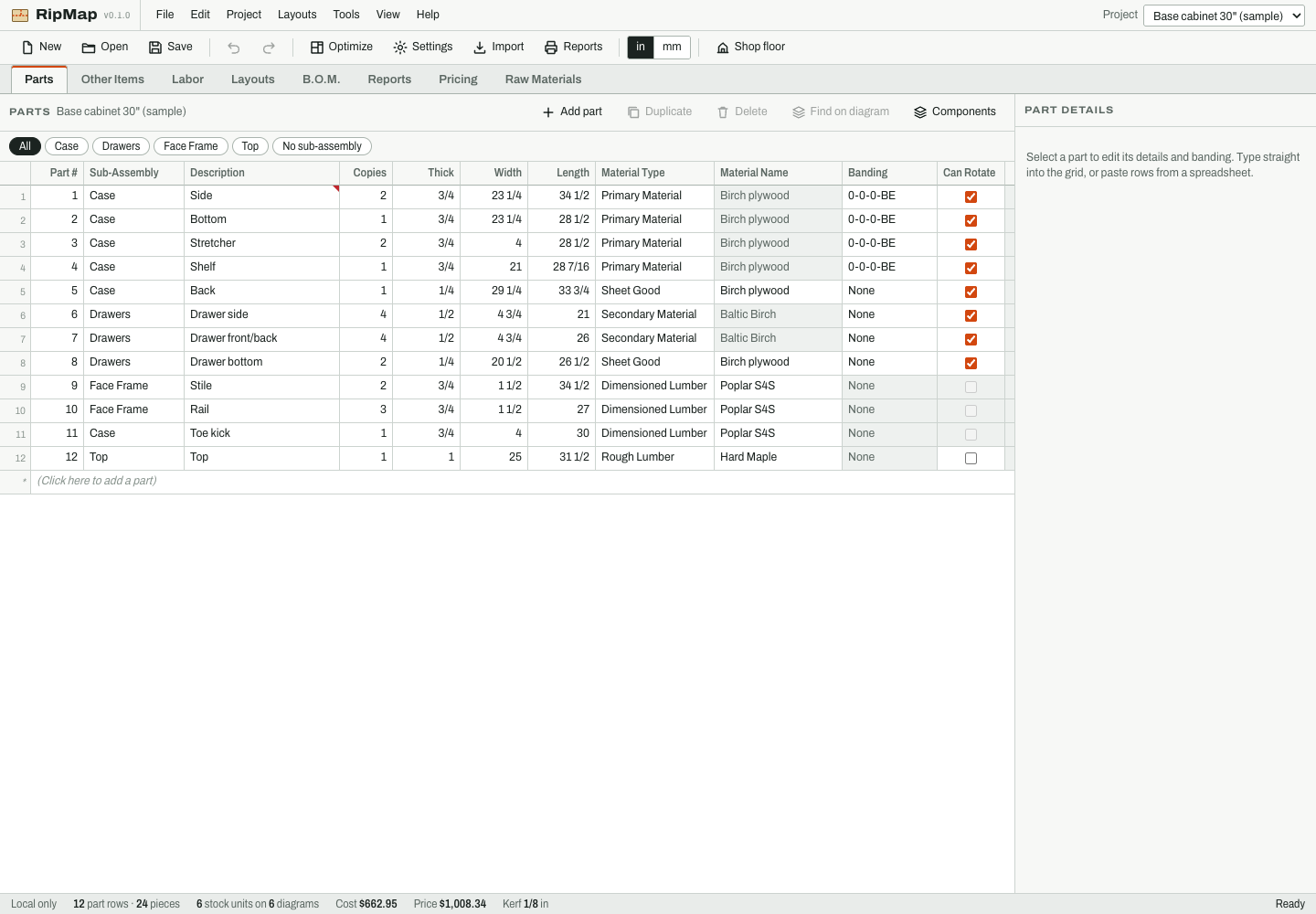
Print cutting diagrams and shop reports, or export CSVs for your spreadsheet. Keep a labeled plan on the bench instead of flipping between notes.
See the parts list - 06
Keep a copy of your work
Export a project file you can reopen. In the hosted preview, sign in to reopen cloud-saved projects on another browser.
See cloud projects
02 / Inside RipMap
Follow one cabinet through the app.
Start with the parts list, then check stock, cutting diagrams, and costs. Every screen uses sample data.
Import and map a CSV
Match each spreadsheet column to a RipMap field and preview the result before you commit.
Parts and quantities
Check the sides, bottom, and drawer parts against the job.
Stock sizes, prices, and offcuts
See standard stock and a reusable offcut next to the material prices you set.
Plywood cutting diagram
Check how the cabinet parts fit and which offcuts you can keep.
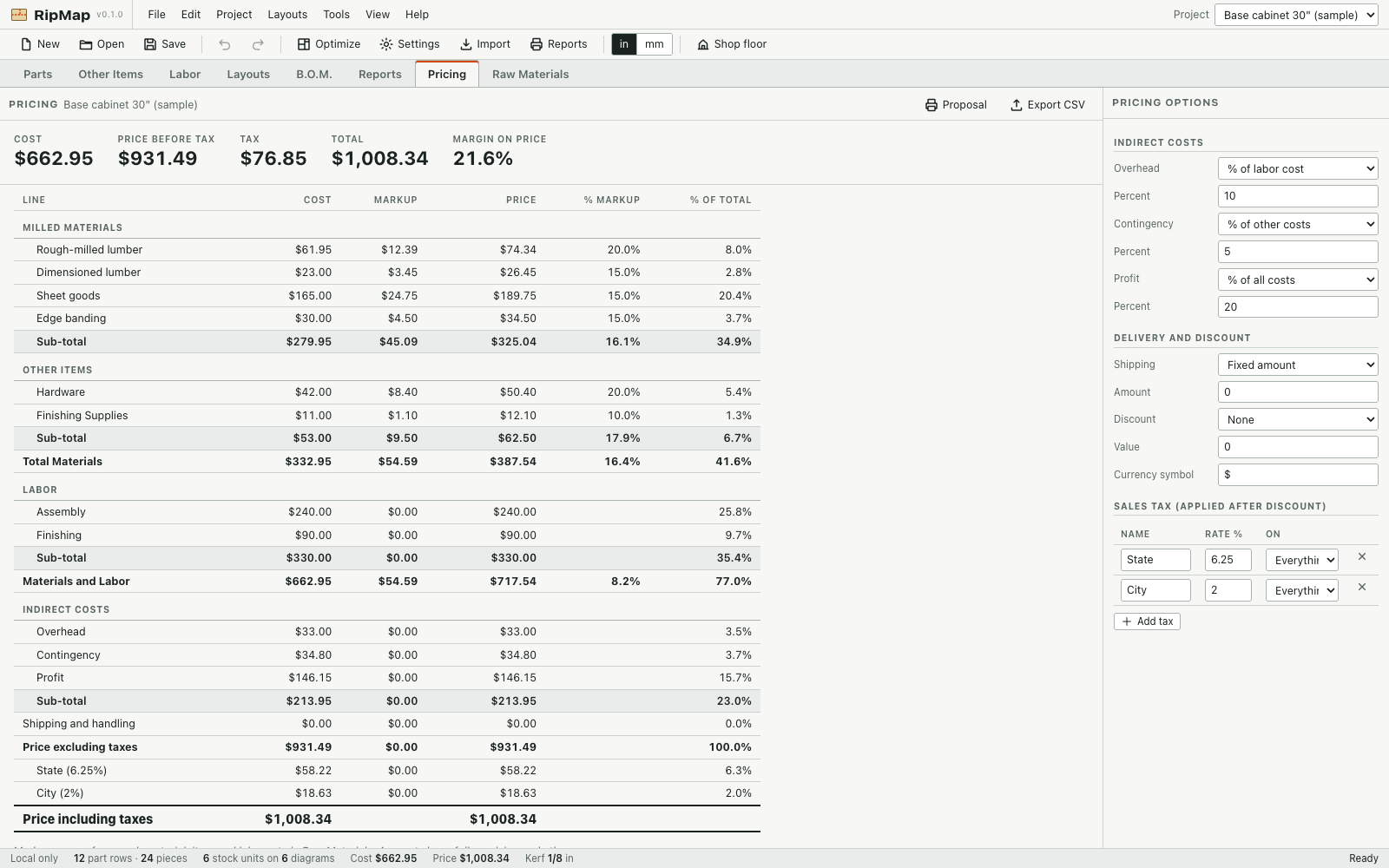
See where the money goes
Review hardware, supplies, and labor line by line, or check the project total.
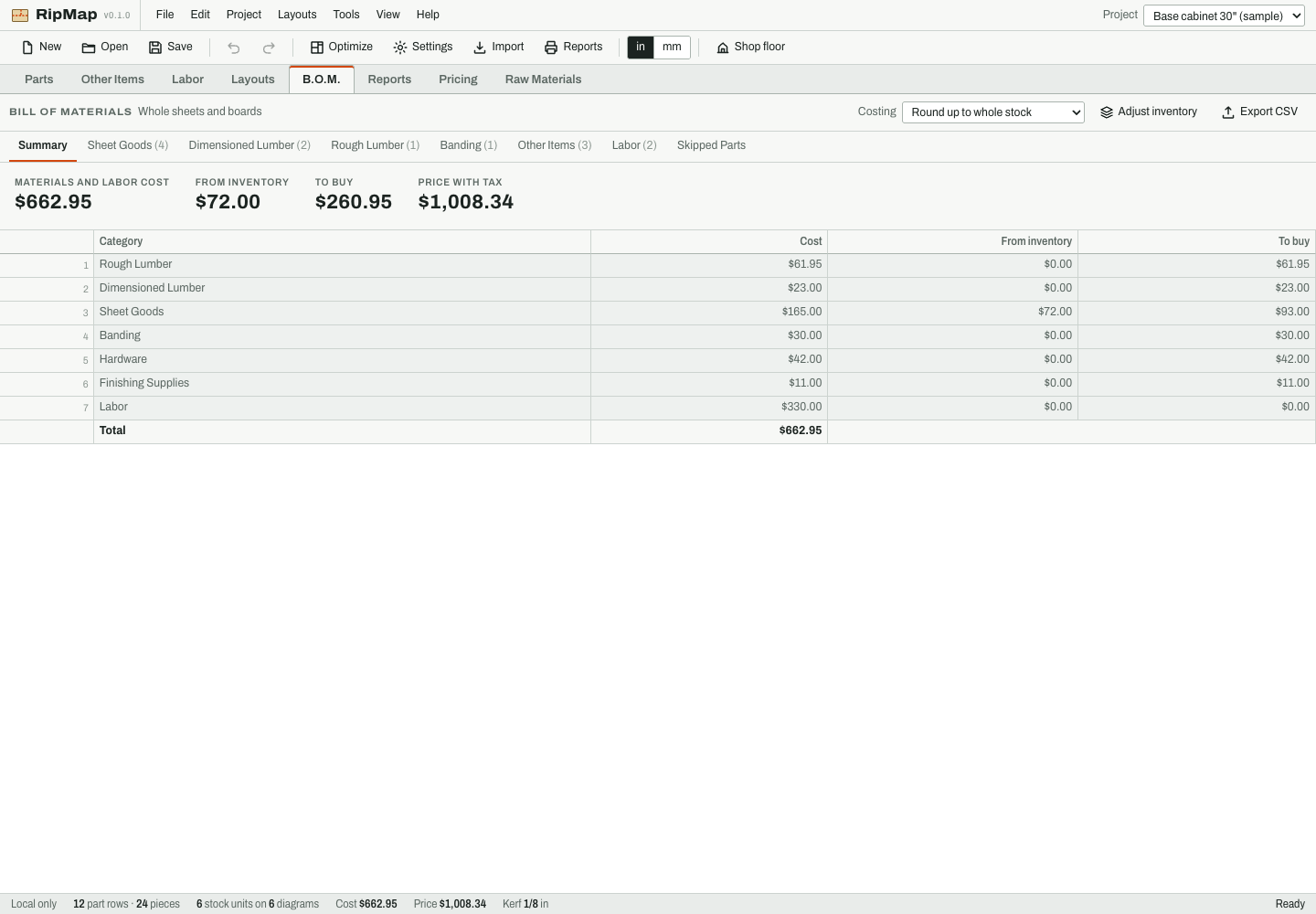
Bill of materials and cost
Check the stock the job uses and the price you entered for it.
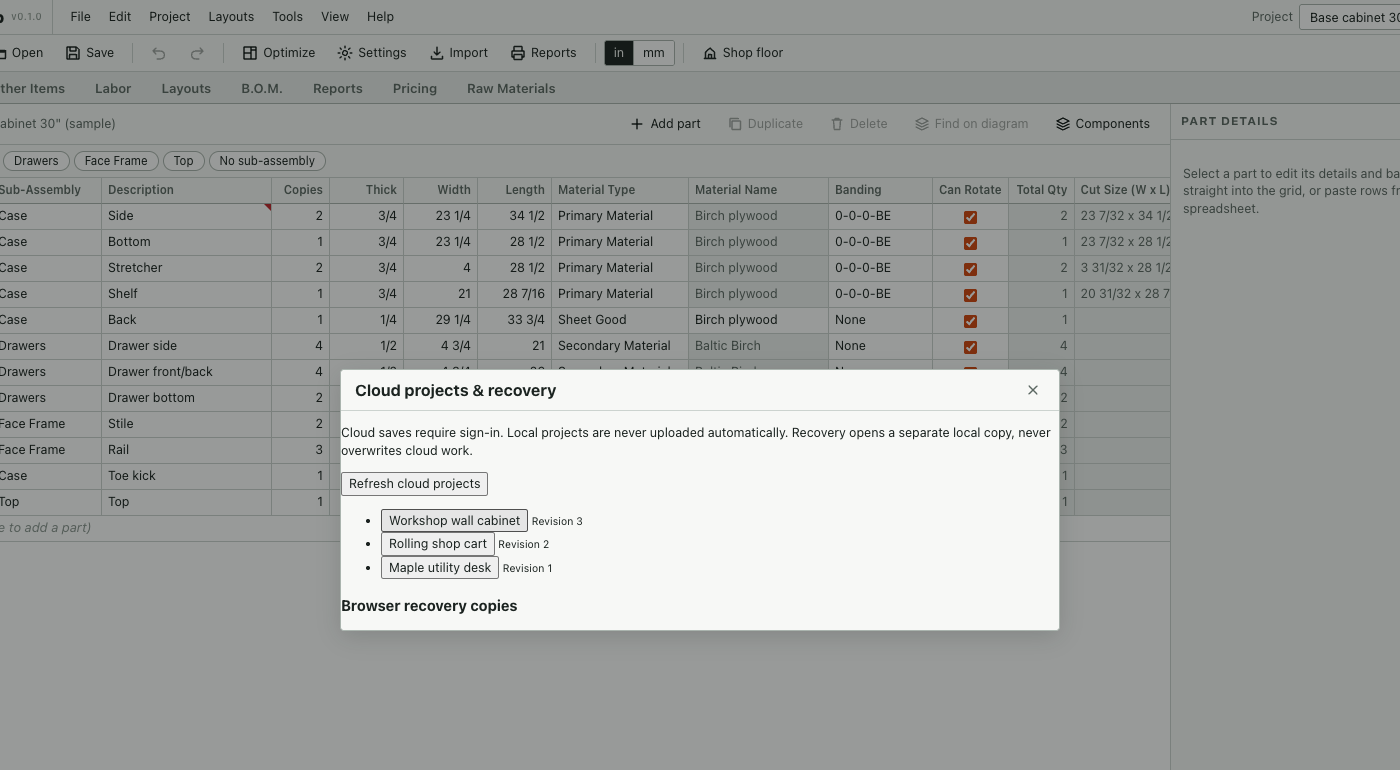
Reopen a cloud-saved project
The private preview’s cloud projects screen, shown with a sample project list.
03 / Shop guides
Get the cut list right first
04 / Frequently asked
Good to know
Do I need SketchUp or another CAD program?
No. RipMap starts with part dimensions and quantities. Enter them by hand, paste rows from a spreadsheet, or import a CSV.
Does RipMap work with solid wood as well as plywood?
Yes. You can plan for board stock and sheet goods in the same project. Keep materials and thicknesses separate so each part ends up on the right stock.
What can I export?
Export and reopen a project file, save parts or report data as CSV, and print shop reports. Layout DXF exports contain geometry, not machine instructions.
Can I try RipMap now?
The hosted app is in private preview and requires an existing sign-in. The screenshots and shop guides are available without an account.
RipMap private preview
Take a look inside RipMap.
The public tour uses a sample project. If you already have access, open the workbench.